CASE STUDY 5 OF 8
MARKDOWN MAKER
Turning documents into Markdown without sending them anywhere.
I designed and shipped a free, open-source Mac app that converts pasted text, documents, and folders locally. No account. No upload. No network requests.
- Version
- 0.1.2
- System
- macOS 14+
- Trust
- Apple notarized
- Role
- Product direction, UX and UI, testing, release
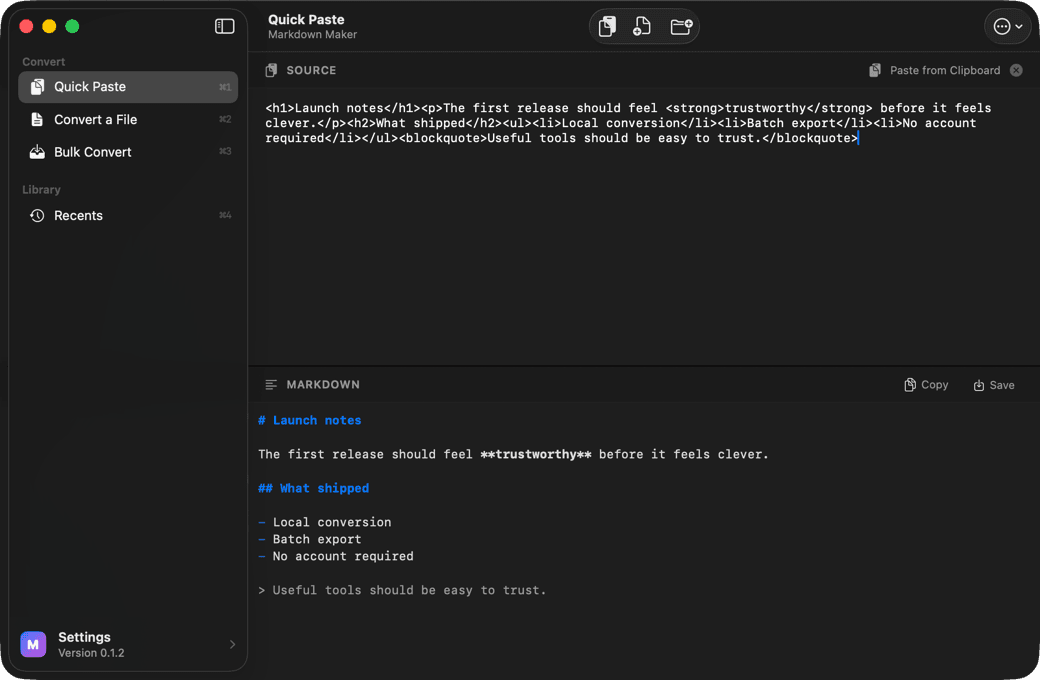
Before: four steps across tools. After: one local workflow.
BEFORE · CHATBOT WORKAROUND
4 steps
upload, prompt, check, copy
- 01Paste the document into a chatbot
- 02Write a conversion prompt
- 03Check the generated Markdown
- 04Copy the result back
The document leaves the Mac.
AFTER · MARKDOWN MAKER
1 local workflow
source and Markdown together
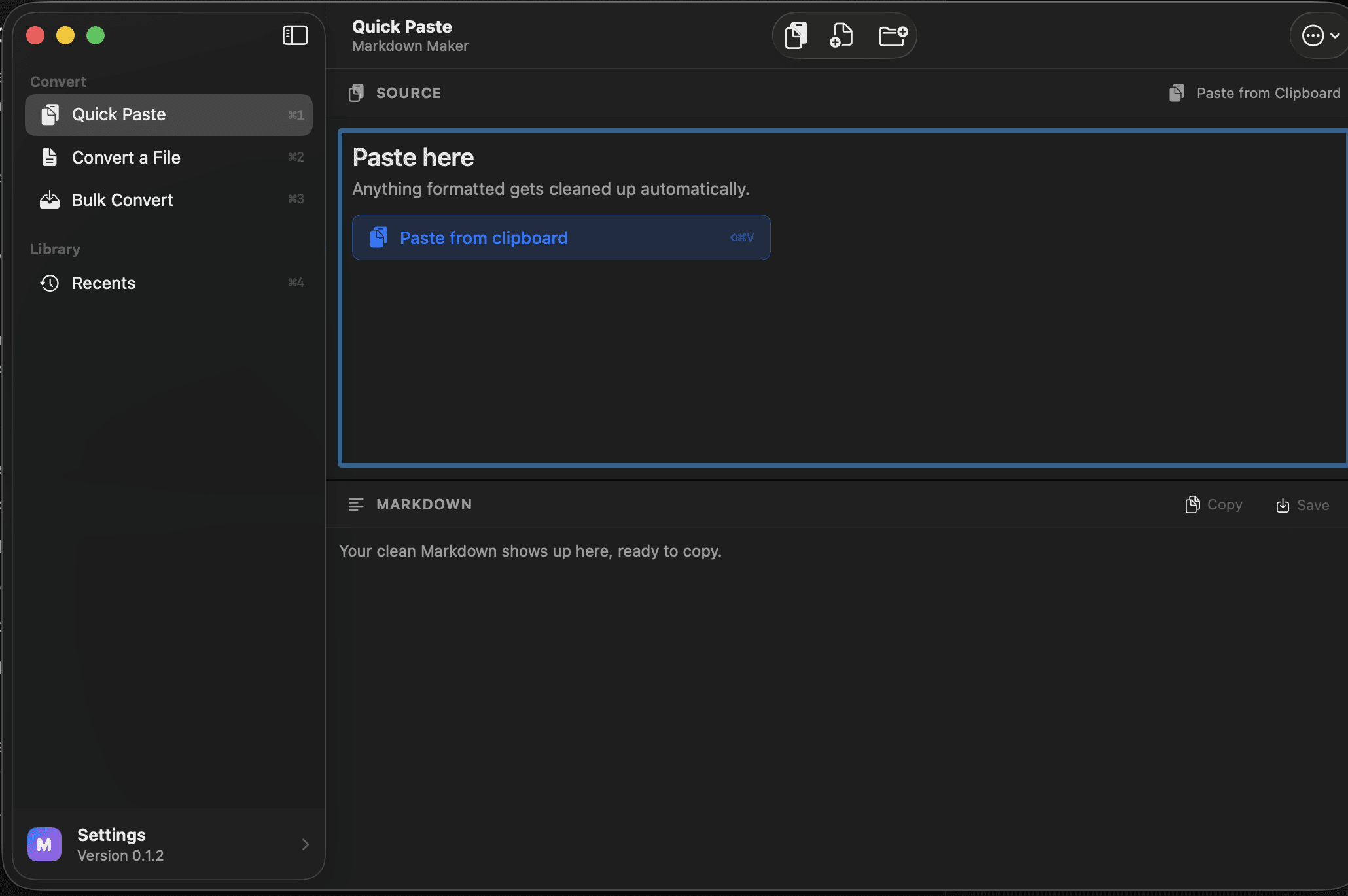
Nothing is uploaded.
This task did not need a better prompt. It needed the prompt removed.
Conversion starts with the content itself: paste text, choose a file, or drop a folder. The app handles the repeated instruction.
Narrowing the product to one job removed the repeated instruction and kept the result next to its source.
Why a native Mac app
The web converters I considered required uploading the document. A command-line tool could stay local, but it kept the setup and instruction burden I wanted to remove. A native app could work with files where they already lived and use familiar Mac behaviors such as drag and drop, keyboard shortcuts, Finder, and the menu bar.
Platform choice
Native macOS kept files local and the interaction familiar.
Chatbot
Strength
Easy to access.
Cost
Repeated prompt and uncertain document handling.
Web converter
Strength
Simple and available anywhere.
Cost
Document upload in the options I reviewed.
Command-line tool
Strength
Local and flexible.
Cost
Requires setup and commands.
Markdown Maker
Strength
Local, native, focused, and available through paste or drag and drop.
Cost
Intentionally narrower than a general-purpose tool.
THREE DECISIONS
Three decisions kept the app small.
01
Remove the prompt
The app begins with the content, not an instruction. It is narrower than a chatbot and faster for this job.
02
Show both sides
The source and Markdown stay together so the result can be checked. The interface uses more space in exchange for trust.
03
Repeat one pattern
Paste, file, and folder conversion use the same rhythm: provide a source, inspect the result, take the output.
Paste. Check. Copy.
Source stays visible
Compare what went in.
Markdown sits below
Check what came out.
Copy or save
Take the result when it is ready.
The sidebar holds context. The toolbar starts a conversion.
TWO JOBS, ONE SET OF ACTIONS
The sidebar shows the current workspace and recent conversions. The toolbar starts a new conversion from anywhere.
Keyboard shortcuts map to the same paste, file, and folder actions, so the entry points stay consistent.
QUICK PASTE
Clean up copied text and compare the source with the Markdown result.
Paste copied text. Check the result. Copy or save when it is ready.
PROGRESSIVE DISCLOSURE
More power stayed out of the main path.
Paste, file, and folder conversion stay visible by default. Less common controls live in Settings, where they can support repeat work without slowing the first conversion.
- Auto-copy after conversion
- YAML frontmatter
- Image-reference handling
- Output-folder control
- Bulk-conversion concurrency
Version 0.1 stays focused on conversion. It does not try to be a general-purpose document editor.
I set the product direction and verified the release.
The system
Input
Text, file, folder, or ZIP
Local converter
System frameworks plus app logic
Output
Markdown preview, then copy or save
- I defined
- The problem, platform choice, interaction model, hierarchy, privacy requirement, scope, and final product decisions.
- Codex accelerated
- SwiftUI views, conversion logic, tests, and release cleanup.
- I verified and shipped
- I reviewed the implementation in Xcode, tested the workflows, and completed signing, notarization, documentation, and the public release.
Trust should be inspectable.
INPUT
Text
Files
Folders
ZIPs
ON THE MAC

Markdown Maker
OUTPUT
Markdown
No account. No analytics. No network requests.
PDFKit, textutil, and the app’s converter run locally. The document does not leave the Mac.
Inspectable trust
The source is public. The downloadable release is signed and Apple notarized, so people can inspect the code or use the app without Xcode.
Known limitation
Scanned PDFs still require OCR. The app states that limit instead of treating every PDF as selectable text.
What shipped
Version 0.1.2 is public on GitHub as a signed, Apple-notarized Mac app with the full SwiftUI source and an MIT license. It runs on macOS 14 or later without Xcode or an account.
Download for macOSREFLECTION
The useful part was removing the detour.
Building the converter was only part of the work. The harder decisions were deciding what the app should not ask, what the user needed to verify, and how much functionality could stay out of the main path. Subtraction made the product useful.
AI working method
How I used AI to move from product decision to working software
- Product decision
- Workflow design, progressive disclosure, native interaction, privacy model, packaging, notarization, and documentation.
- AI-assisted build
- I used AI coding tools to build the SwiftUI utility and release workflow, while I defined the conversion model, privacy rules, and QA checks.
- Evidence
- Release: Version 0.1.2
- Distribution: Signed · Notarized
- Architectures: Apple silicon · Intel